Connect a domain to a website
Last updated 31 July 2026
Every domain your workspace owns is registered in one place — Settings → Domains — and each one says what it's for. That's what keeps your CRM address and your public website addresses from colliding.
1. Add the domain
Type the domain or subdomain (www.acme.com, go.acme.com), then say what it is for and click Add domain:
- Host a website or the CRM on it — what you want here. This points the domain at us, so whatever it currently serves will be replaced.
- Send email from it — mail only. Nothing is added at the root of the domain, so a website served there keeps working.
The answer only decides which records you are asked for, and it is not final: attaching a site to an email-only domain, or reserving it for the CRM address, adds the hosting records at that point. Whether a verified domain serves the CRM or a website is likewise decided later, by the action that uses it.
2. Publish the DNS records
Click DNS records on the domain and Solstral looks up who runs DNS for it, then tailors the instructions: your provider's name, a link straight to the right screen, and the wording that provider uses. If your DNS host can add the records itself, you'll get an Add these records for me button — you approve it on your provider's own site, and nothing about your DNS login is ever shared with Solstral.
Otherwise, copy them across by hand. Each record says what it's for — Routing, Ownership or Certificate — and carries its own indicator: green once we can see it in DNS, amber while we can't. So if one record is typo'd, that record tells you, instead of the whole domain sitting on "pending". Publish them, then click Re-check. The list also re-checks itself whenever you open it, so a domain that verifies overnight already says Verified next time you look.
Records stay viewable at any time — before, during and after verification — so you can always go back and confirm what's published.
Why do the records change?
Verification runs in two stages, and the panel tells you which one you're on. First you prove you own the domain. Once that's confirmed the ownership record is no longer needed, so it drops off the list and certificate records (_acme-challenge…) appear in its place to issue your HTTPS certificate. Those disappear too once the certificate is live. Records vanishing isn't a problem — it's the previous step being ticked off.
3. Attach it to a site
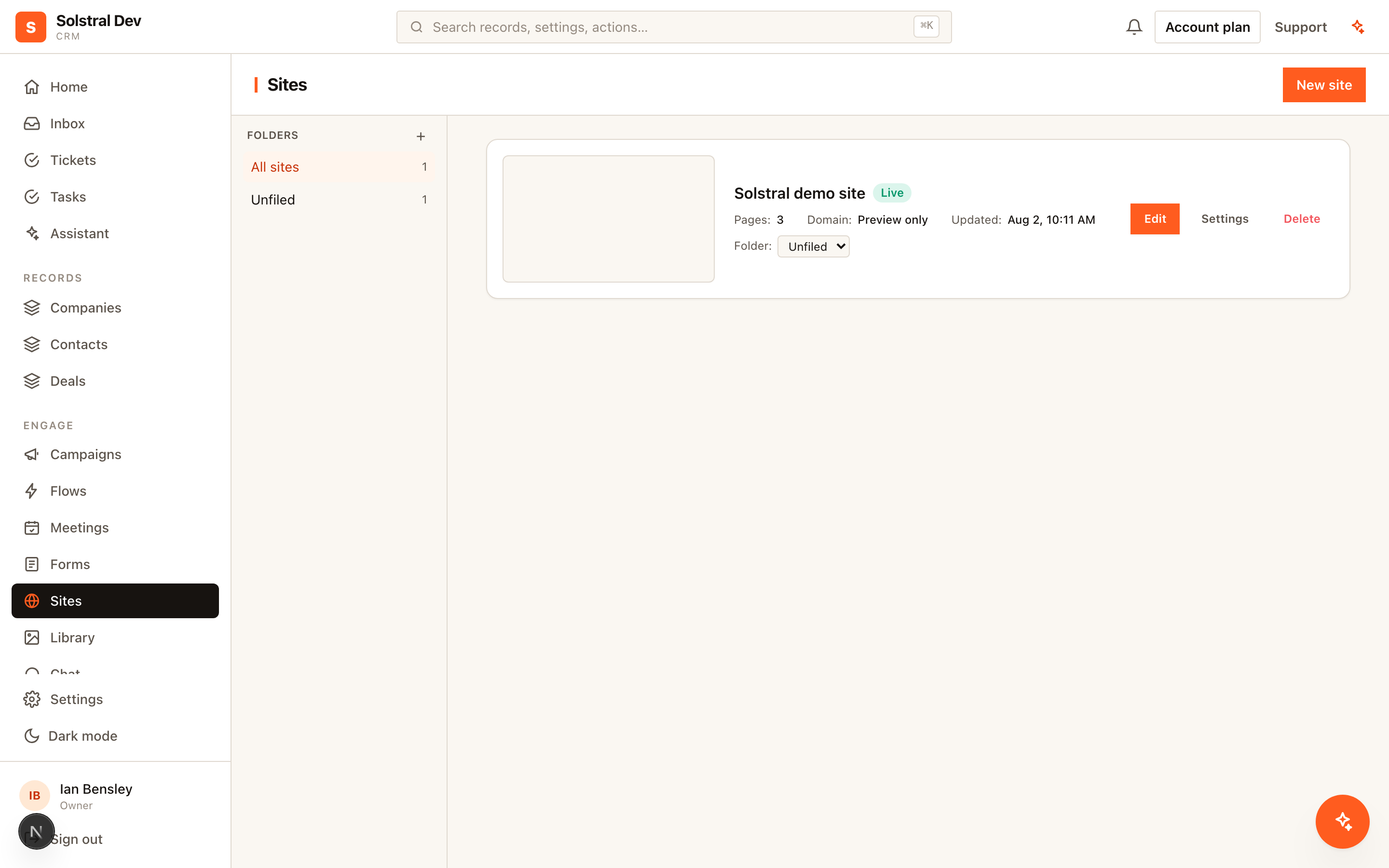
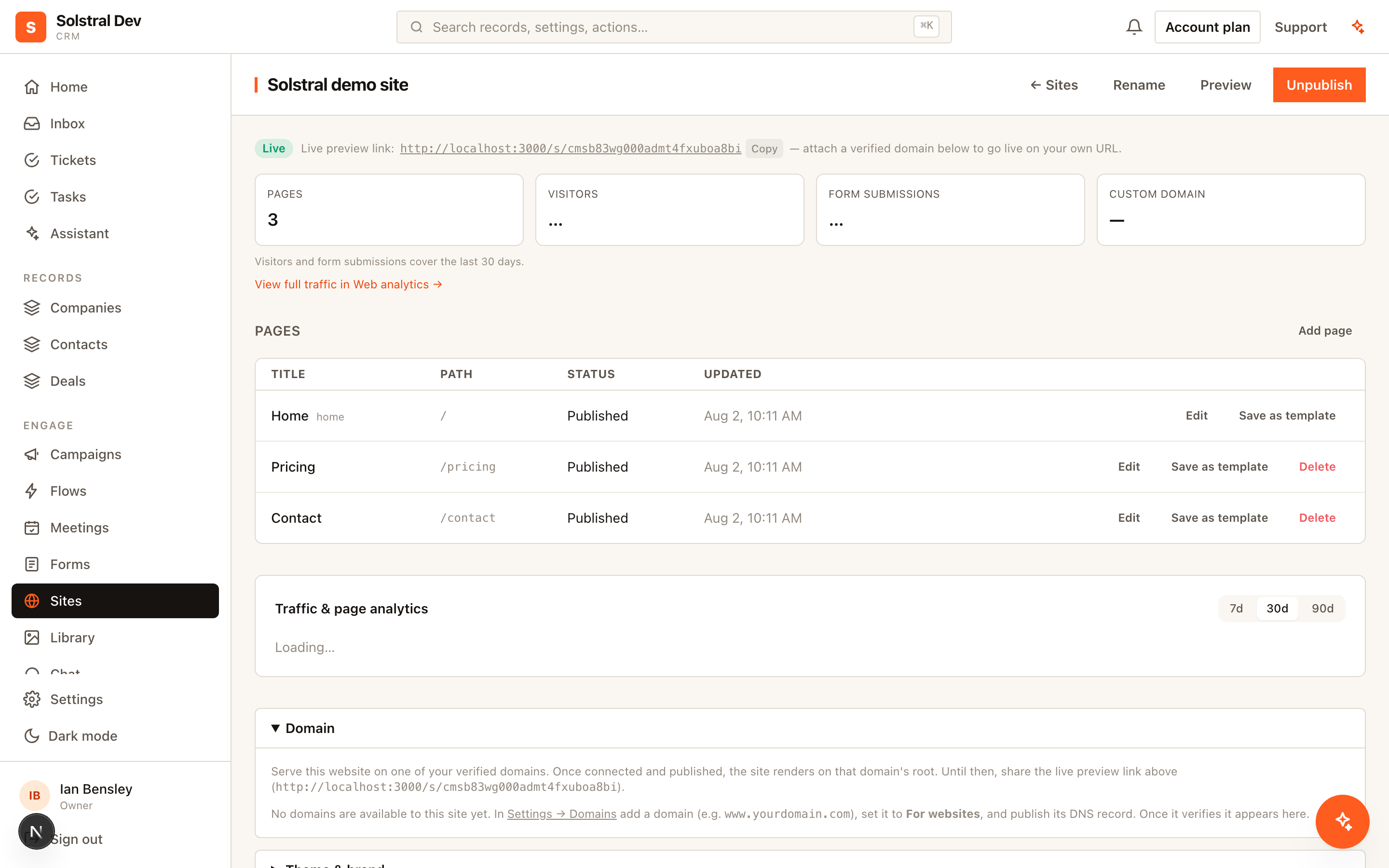
Open the site under Sites, expand Domain, and pick the domain from Serve this website on. Publish the site and it's live on that address, over HTTPS — the certificate is issued and renewed for you.
Using a root domain (acme.com, not www.acme.com)
Root domains work, but they need one extra decision, because DNS doesn't allow the CNAME record we ask for at the root of a domain — your DNS host will simply refuse to create it. Solstral spots this and tells you when you enter one. Where we recognise your DNS host, Solstral tells you which of these applies to you specifically, so you can skip straight to it. Three routes, all free:
- Your DNS is on Cloudflare — add the CNAME at the root anyway. Cloudflare flattens it to the right records automatically. This is the easiest option and gives you a genuine root domain. Moving a domain's nameservers to a free Cloudflare account takes a few minutes.
- Your DNS host supports ALIAS or ANAME — Route 53, DNSimple, easyDNS, DNS Made Easy and others. Create that record type instead of a CNAME, pointing at the same target.
- Neither — register
www.acme.comin Solstral instead, then set your registrar to forwardacme.comto it. Nearly every registrar offers that free, and visitors typing the bare domain still arrive.
Choosing the address the CRM runs on
The panel at the top of Settings → Domains always states which host the CRM itself answers on. To change it, add a domain, set it to For the CRM app, and click Use as the app address on that row — Solstral registers it and issues its certificate, and any previous app address is released automatically. Only one domain can be the app address at a time, and it can't be one a website is already publishing on.
Release puts the CRM back on the default Solstral address. The domain stays registered, so you can point a website at it instead or set it back later.
Why isn't my domain in the list?
The Domain section on each site lists every domain you own with a reason beside any that can't be used, so this is never a guessing game. A domain is selectable when all of these are true:
- It's Verified — the DNS record is published and found.
- It's marked For websites, not for the CRM app.
- No other site is already publishing on it. One domain serves one website; repoint the other site first to free it up.
crm.acme.com) and your website on yours (www.acme.com). They're separate things served differently, and splitting them means neither can break the other.