Add a domain and turn on sending
Last updated 13 August 2026
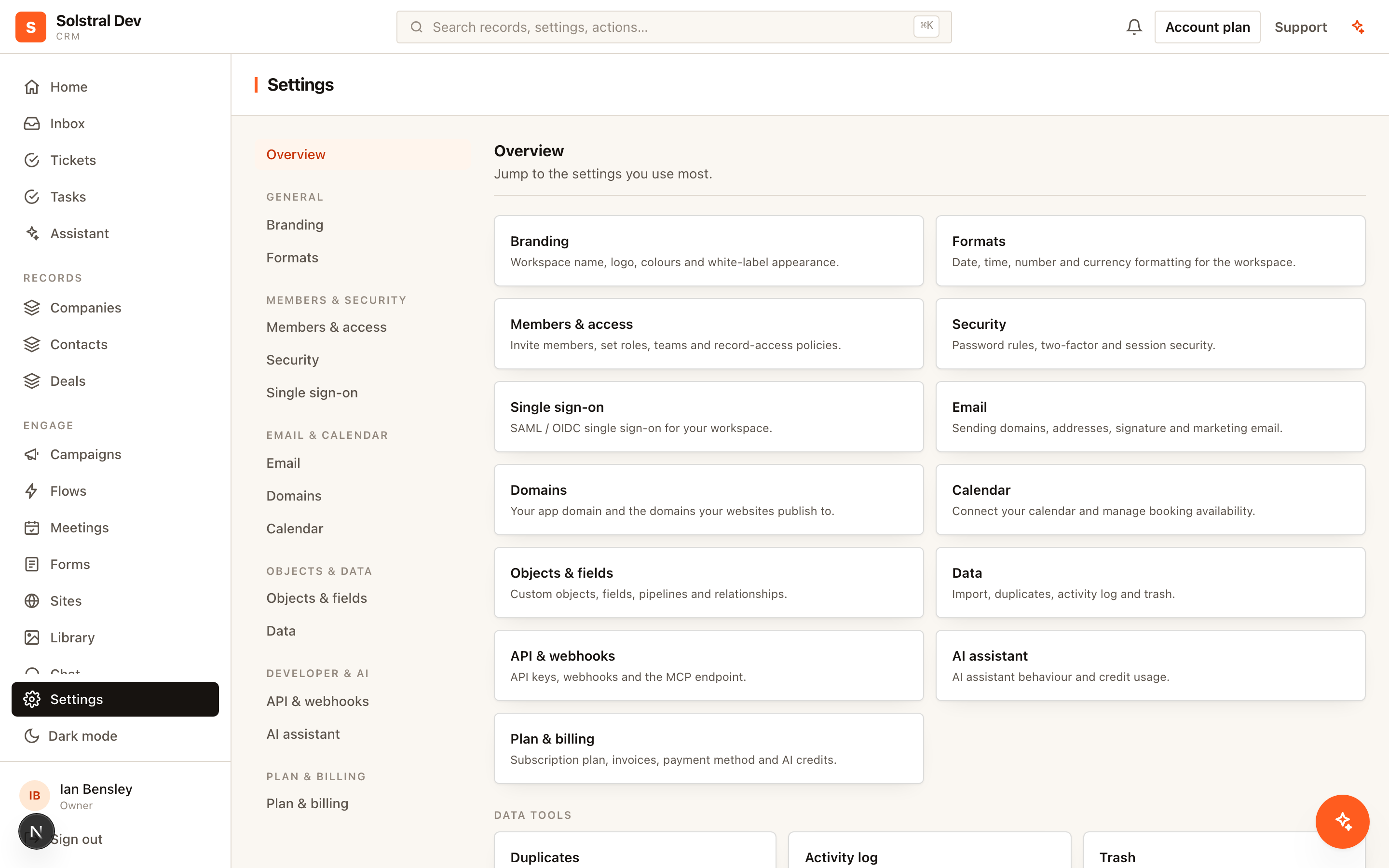
Every domain your workspace uses is added and verified in one place: Settings → Domains. Once a domain is verified there, you can use it to send email, publish a website, or serve the CRM itself — you choose that where you use it, not when you add it.
1. Choose the domain to send from
We recommend a dedicated subdomain such as mail.yourbrand.com rather than your root domain. A subdomain builds its own sending reputation, which means a bad campaign cannot damage the deliverability of your everyday business email on the root domain.
Keep the domain you send from aligned with the domain your links point to. Providers check that the two match, and a mismatch is a common, avoidable reason for landing in spam.
2. Add the domain
Go to Settings → Domains, enter the domain, and answer the one question: is it for sending email, or for hosting a website or the CRM? That single answer decides which records you are asked for. Choosing sending email asks for nothing at the root of your domain, so your website and the mail you already receive are untouched. You can add hosting later without redoing anything. Solstral shows the records to publish and identifies who runs DNS for the domain, linking you to the right screen at your provider.
If your DNS provider supports one-click setup, you will see an Add the records for me button. That sends you to your own provider's approval screen and the records are created there — no DNS credentials ever reach Solstral.
3. Publish the DNS records
Add the records exactly as shown at whichever DNS host manages the domain — Cloudflare, Route 53, GoDaddy and so on. Copy and paste rather than retyping; a single transposed character is the usual reason a domain never verifies.
One frequent trap: some DNS hosts automatically append your domain name to the record's host field. If your host does that, entering the full value produces a doubled name such as selector._domainkey.mail.yourbrand.com.yourbrand.com. Enter only the part before your domain if you see that behaviour.
Each record shows its own Found in DNS tick, so if one record is wrong you can see exactly which — rather than the whole domain sitting on "pending" with no clue why.
4. Wait for the automatic check
There is no support ticket to raise. Solstral re-checks any pending domain each time the page loads and refreshes itself while you have it open. Most domains verify within minutes of DNS propagating, though some hosts take up to an hour.
5. Turn on sending
Once the domain is verified, go to Settings → Email and choose it from the Enable sending picker. You pick from domains you have already verified — you never type a domain here, which is why a domain can no longer end up half-configured in two places.
The domain then appears in your sending list with its own page. Open it and you get everything for that domain in one place: the DKIM records to publish, its authentication status, the warm-up ramp, and its marketing footer. The list itself shows DKIM, SPF, DMARC and BIMI as four dots per domain, so you can see at a glance whether anything needs attention without opening each one.
5b. The rest of the records
DKIM is the only required one — nothing sends until it resolves. The domain's page also offers three optional records, each explaining what it buys you:
- Bounce address (one MX, one TXT on a
bounce.subdomain) — puts SPF on a domain you own rather than Amazon's, so your mail can pass on either SPF or DKIM instead of DKIM alone. It only ever touches that subdomain, so it cannot disturb the SPF record covering your everyday business email. - DMARC — we read what you have published and hand you a value to copy: a monitoring-only record if you have none, an explicit record for the sending subdomain if it is currently inheriting one from your root domain, or the quarantine value when you are ready to step up from monitoring. We never publish or change a DMARC record for you, because it governs every system that sends as your domain, not just Solstral.
- BIMI — your logo beside your emails. Upload a square SVG and we check it against BIMI's requirements immediately rather than letting a certificate authority reject it days later. It is gated on DMARC actually being at enforcement across all your mail, which is the usual reason a BIMI setup silently never appears.
Sending from your root domain (info@acme.com)
Yes, and it will not disturb a website already served from that domain. Every record email needs sits on a subdomain — _domainkey, bounce, link, _dmarc — and nothing is added or changed at the root itself. So the record pointing acme.com at your marketing site stays exactly as it is, and so does the MX record carrying the mail you already receive.
Add the domain with Send email from it selected. You are never asked for the routing record that a website needs, because sending does not need your domain pointed at us — only proof that you control it, which publishing the DKIM records already gives.
This is a separate question from whether you should. A dedicated subdomain keeps its own sending reputation, so a bad campaign cannot hurt your everyday business email. Sending from the root domain is the right call when recognition matters more — a support or billing address people already know.
6. Add senders on the domain
Create the From identities that will use it — see Senders and who may use them. A sending domain by itself does not send anything; a sender on it does.
Removing a domain
A domain can be removed whenever nothing depends on it. If something does — a website publishing on it, sending addresses using it, or the CRM being served from it — the Remove button explains which, so you know what to undo first.