Get started with the AI assistant
Last updated 1 August 2026
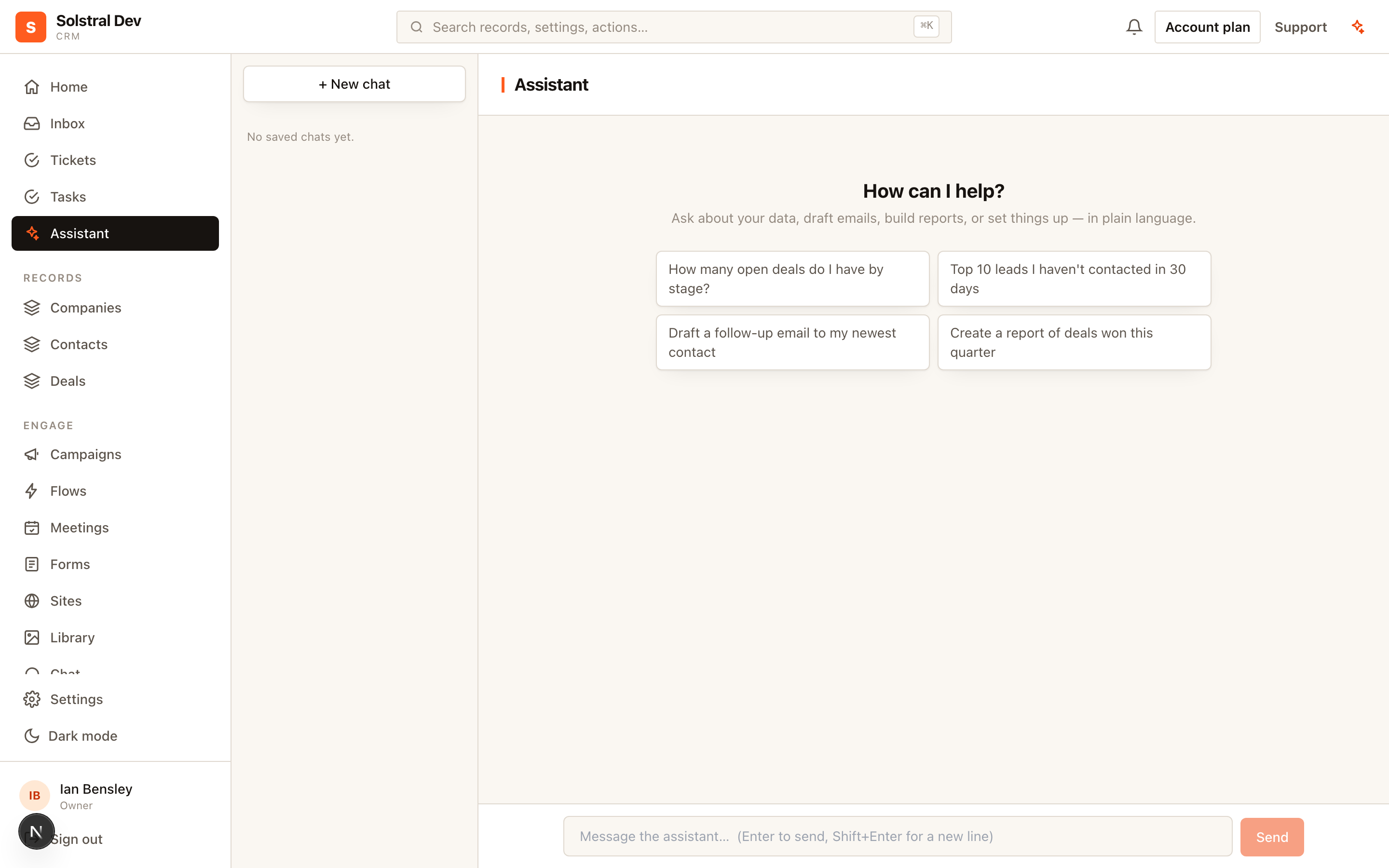
The assistant is a chat surface inside the CRM that can reach the same operations you can — so a request can produce the finished thing rather than instructions for doing it yourself.
What it can actually do
It queries your records and activities, drafts and sends email, creates and updates records, builds automation flows, templates and dashboards, and answers questions about your data. It is not a general widget bolted on the side; it works through the CRM's own operations.
1. Ask for an outcome, not a search
"Show me deals" gives you a list. "Which deals in Proposal haven't been touched in two weeks, and who owns them?" gives you something you can act on. The assistant handles the filtering and the joining, so ask the question you actually have.
2. Let it do the work, then check it
Ask it to draft the follow-up email, build the flow, or create the records — then review what it produced before sending or activating. Reviewing a draft is much faster than composing one, and you stay the one who decides.
3. Understand the permission model
The assistant acts as you. It cannot do anything your role does not permit: a viewer cannot use it to edit records, and a member cannot use it to send from a sender they have not been granted.
Everything it does is written to the audit log attributed to you. The assistant is a faster way to use your access — never a way around it.
4. Know what it costs
Assistant usage draws AI credits: a monthly allotment from your plan, plus any non-expiring balance you have purchased or been granted. Running out pauses the assistant and nothing else — the CRM itself is never gated on credits. See AI credits explained.
5. Connect your own AI client
The workspace exposes an MCP server, so external AI clients that support it can use the same tools under the same access rules. Configuration lives in workspace settings, along with the option to supply your own model API key.