Organise the inbox: labels, folders, views and notes
Last updated 4 August 2026
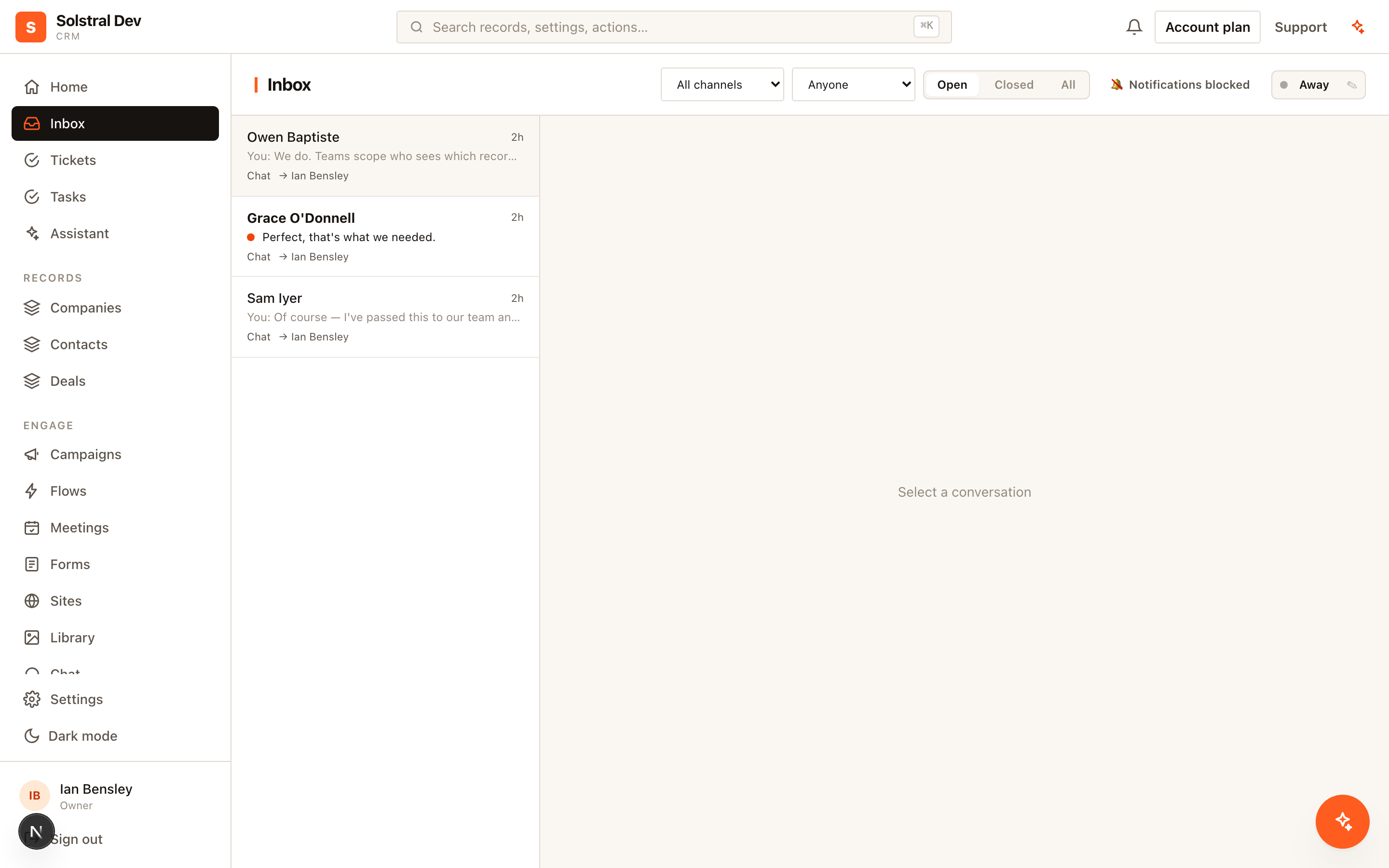
Once more than a handful of conversations a day arrive, a single list stops being enough. The inbox gives you labels, folders, saved views, search and internal notes — plus the keyboard shortcuts to use them quickly.
Labels, not folders
A label is a coloured tag you put on a conversation, and a conversation can carry as many as you like. That is the important difference from filing something in a folder: labelling a thread Billing does not take it out of VIP, out of your Unread list, or out of anyone else's view. Nothing moves — you are only ever adding a way to find it again.
Create labels from the + beside Labels in the left rail, or straight from the label menu on a conversation by typing a name that doesn't exist yet. Hover a label and click ⋯ to recolour, rename, move or delete it. Deleting a label removes it from every conversation and changes nothing else — no mail is affected.
Folders group labels, not conversations
A folder is a collapsible heading in the rail that holds related labels — a Support folder containing Bug, Billing and Refund, for instance. Folders never contain conversations, which is why deleting one is safe: its labels simply return to Ungrouped.
Start flat. Add folders when the label list is long enough to be annoying, not before.
Standing views and counts
The top of the rail holds the views you'll use every day — Inbox, Unread, Assigned to me, Unassigned, Starred, Snoozed, Closed and Archived — each showing a live count of what's in it, scoped to the mailboxes you can see.
Search and saved views
The search box searches message bodies, email subjects and senders as well as names, so you can find a conversation by something that was said in it. Combine search with the channel, mailbox, assignee and label filters, then click Save view to keep that combination — privately, or shared with the team. Saved views appear in the rail under Saved.
A view worth saving is usually one you'd otherwise rebuild every morning: "unassigned email waiting on us", or "anything labelled Refund that's still open".
Internal notes
Switch the composer to the Internal note tab to write something only your team sees. Notes appear in the thread in amber, clearly marked, and @mention a teammate by name to notify them. A note is never sent to the customer, never changes where the conversation sits in your list, and never reopens a closed conversation — saying something about a conversation isn't the same as answering it.
Star, archive and snooze
These are three different statements, deliberately. Star pins a conversation to the top of whatever list you're in. Archive takes it out of every list except Archived without declaring it resolved — and if the customer writes again it comes straight back. Snooze hides it for an hour, until later today, until 9:00 tomorrow or until 9:00 on Monday, and when the time comes it returns unread so you notice it. A new message from the customer brings a snoozed, archived or closed conversation straight back. Close is the one that means the work is finished.
Bulk actions and shortcuts
Tick the checkboxes on several conversations and a bar appears to archive, close, mark read or unread, assign or label all of them at once. If some of your selection is in a mailbox you can't act on, those are skipped and the rest go through.
The keyboard shortcuts are the ones you already know: j/k to move through the list, x to select, e archive, y close, s star, u unread / read, a assign to me, r reply, n note, l labels, / search. Press ? for the full list. They never fire while you're typing.