Track support tickets and SLAs
Last updated 27 September 2026
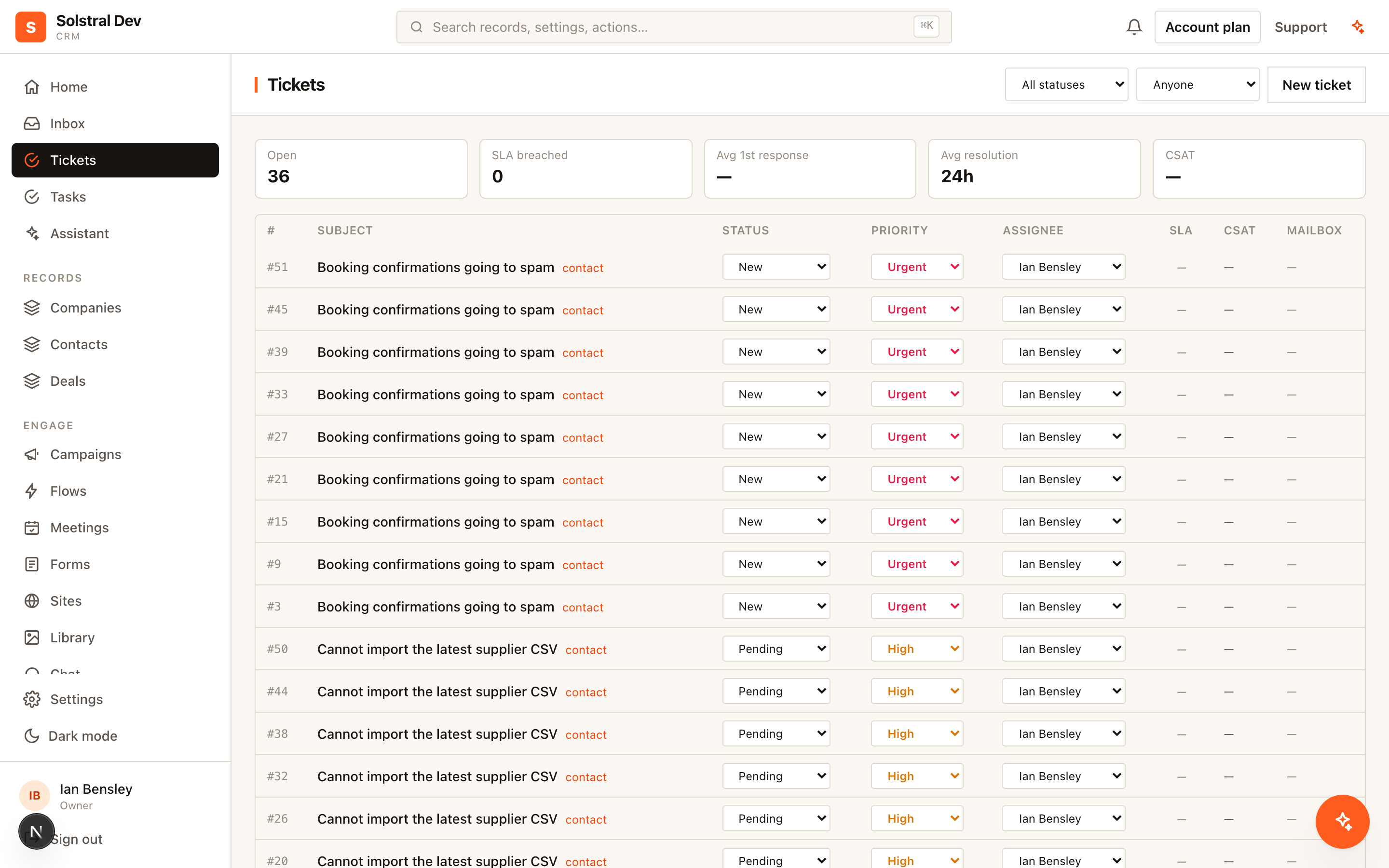
A ticket is a conversation that needs tracking: a number, a status, an owner, and a clock against the response you promised.
When to raise one
Not every message deserves a ticket. If you can answer it in one reply, answer it. Raise a ticket when the issue will outlive the current conversation, when it needs a priority relative to other work, or when you have committed to a response time you intend to measure.
If a mailbox is purely for support, an admin can have every new customer message there raise a ticket automatically (Settings ▸ Tickets & SLAs). The clock then starts when the customer wrote, not when someone got round to it. Auto-replies and bounces never raise one.
1. Create the ticket
Press Ticket on a conversation in the Inbox, or New ticket on the Tickets page. A ticket raised from a conversation takes its mailbox, contact, owner and customer, and its clock starts when the customer started waiting. If someone already replied, that reply counts as the first response. It gets the next number for your workspace — the reference you and the customer can both quote — and appears on the contact's timeline.
2. Set status and priority
Statuses run new, open, pending, on hold, solved and closed. Pending means you are waiting on the customer; on hold means you are waiting on yourselves or a third party. Keeping those two distinct is what lets you tell "they haven't replied" apart from "we haven't done it" when you review the queue.
Priorities are low, normal, high and urgent. If most of your queue is urgent, none of it is. Changing the priority moves the targets to match.
3. Assign an owner
Assign the ticket to a person who can open its mailbox. The ticket and its conversation share one owner, so assigning either assigns both. An unassigned ticket is everybody's and therefore nobody's.
4. Watch the SLA clock
Every ticket has two targets: a first reply and a resolution, set per priority in Settings ▸ Tickets & SLAs. Only a real reply to the customer counts as a first response — changing the status doesn't.
With business hours on, the clock only runs while you're open, so a four-hour target on a ticket raised late on Friday falls due on Monday morning. While a ticket is Pending the clock pauses (you can pause On hold too), and the target moves on by however long it was paused.
The owner is warned shortly before a target is due. When one is missed, the owner, the mailbox's managers and anyone on the escalation list are told, and a flow can react to the breach.
5. Solve, reopen and follow up
Solving a ticket closes its conversation, and closing the conversation solves the ticket. If the customer replies within the reopen window (7 days by default), the ticket reopens with a fresh resolution clock. After that — or once a ticket is closed — a reply starts a new follow-up ticket linked to the old one, so the first ticket's numbers stay as they were.
6. Close the loop with CSAT
When a ticket is solved, the customer is emailed a 1–5 rating link, as long as someone replied to them and there's an address to send to. The link opens a page where they confirm their score and can leave a comment, so a mail scanner opening the link can't rate for them. They can change their rating for a week. A low score notifies the owner, and every rating can start a flow.
Tickets and the rest of the CRM
Each ticket has its own page with its history, the recent messages and any follow-ups. It shows on the contact's timeline, in reports and dashboards, over the REST API (/api/v1/tickets) and through the assistant. Flows can start when a ticket is created, changes status, is assigned, solved, breaches its SLA or gets a rating, and flow steps can create and update tickets.